One more hug
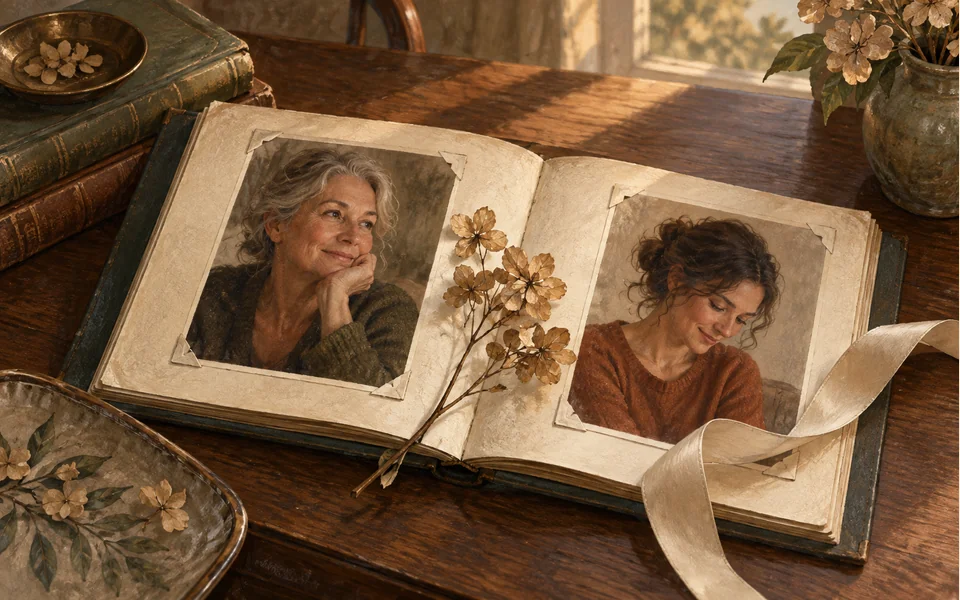
Memorial Hug brings two people together from two separate photos, even years apart.
A gentle clip from their photos
Add a photo of the person you lost and a photo of you, and the two of you share a quiet hug in warm evening light. With only their photo, their portrait can blink and smile instead.
Your photo
One photo is enough: solo or the two of you.
Effect
Memorial Hug is made for two people: add a second photo, or use one photo of you both.
Video
This video: 4 credits. Ready in about 2 to 5 minutes; failed generations return your credits. View pricing
An AI tribute video is a short, gentle clip made from photos of someone who has died. Add their photo and one of you, keep Memorial Hug selected, and the two of you meet in a sunlit meadow and share a long hug to soft piano; with only their photo, Bring to Life makes the portrait blink, breathe and smile. A 5 second clip on Seedance 2.0 Mini at 720p costs 4 credits, the provider quotes up to about 5 minutes, and a failed render is refunded. Each clip is one scene: for a longer memorial video, join a few clips in any video editor. It is an imagined moment, not a recording.
Updated
What it is
A tribute here is one short scene built from photos you already have of a mother, a grandparent, a partner or a friend. In Memorial Hug, the two of you stand in a meadow at golden hour, step closer and hold each other in a long hug with eyes closed, then smile toward the camera, over gentle piano and strings. Faces and outfits come from your photos.
With only their photo, Bring to Life keeps the picture’s own background and framing: the person blinks, breathes, smiles softly and turns a little while the camera stays still. There is no prompt to write.
Three steps
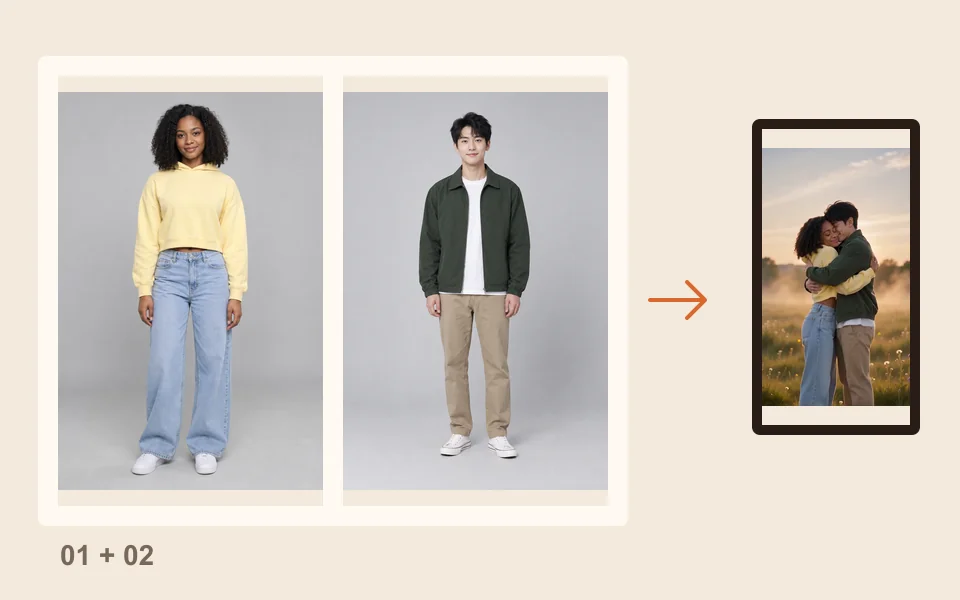
A clear photo of them with the face easy to see, and a recent one of you. One photo of you together works too.
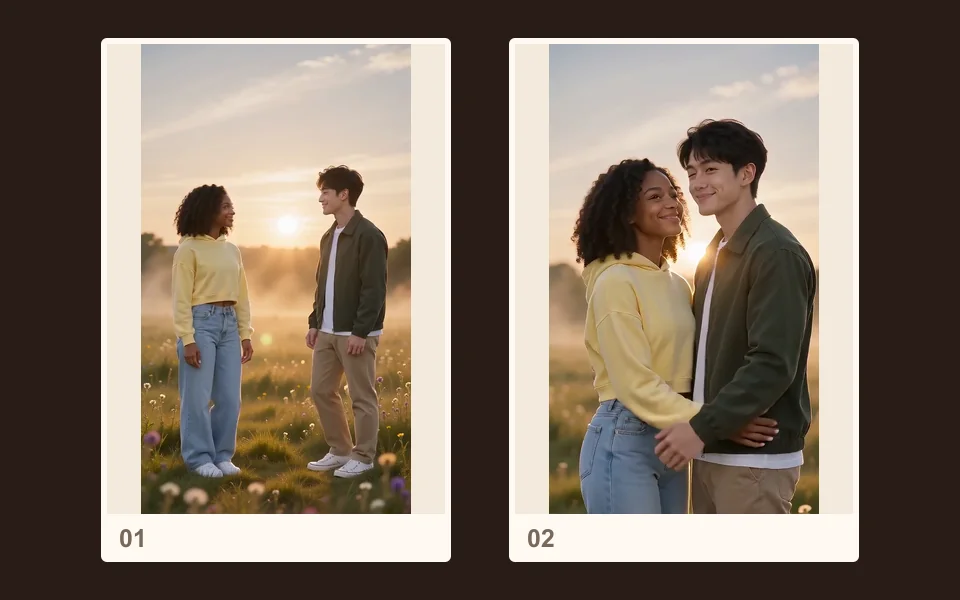
Memorial Hug is selected. For their photo alone, tap Bring to Life. The price updates with every setting.
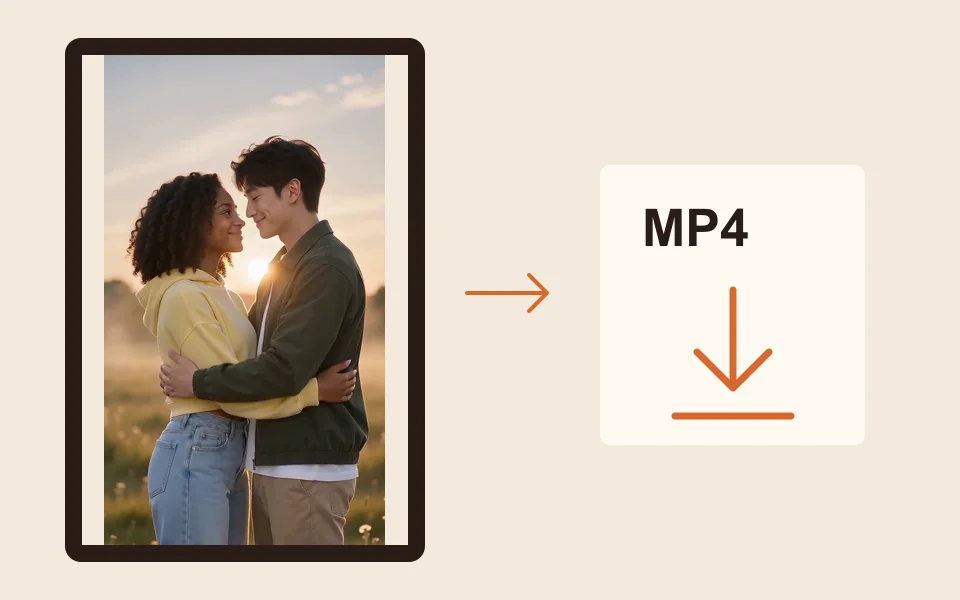
The provider quotes up to about 5 minutes. Download the MP4 to keep, send to family or add to a longer video.
What you get
Memorial Hug brings two people together from two separate photos, even years apart.
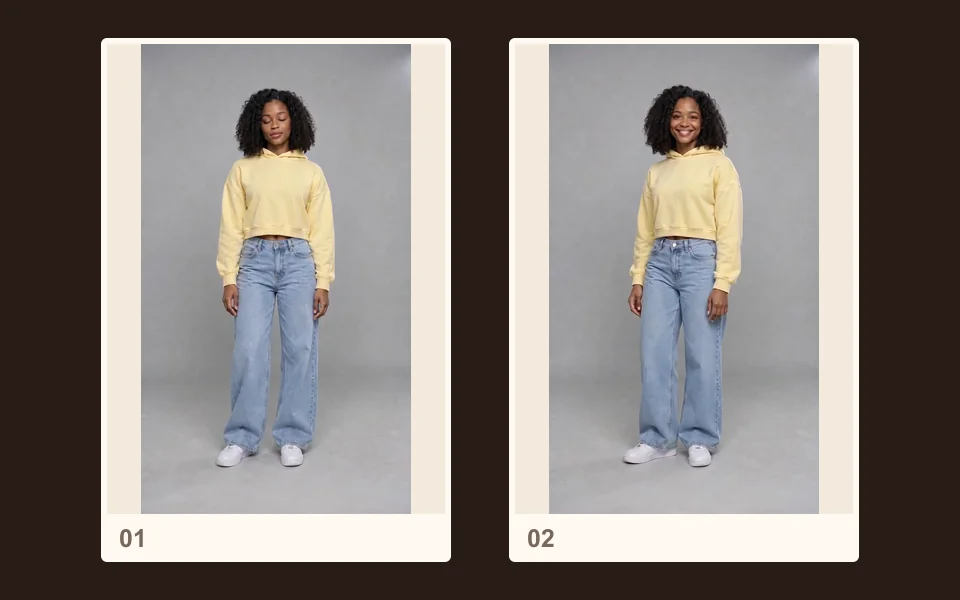
Bring to Life keeps the photo’s own setting; only the person moves.
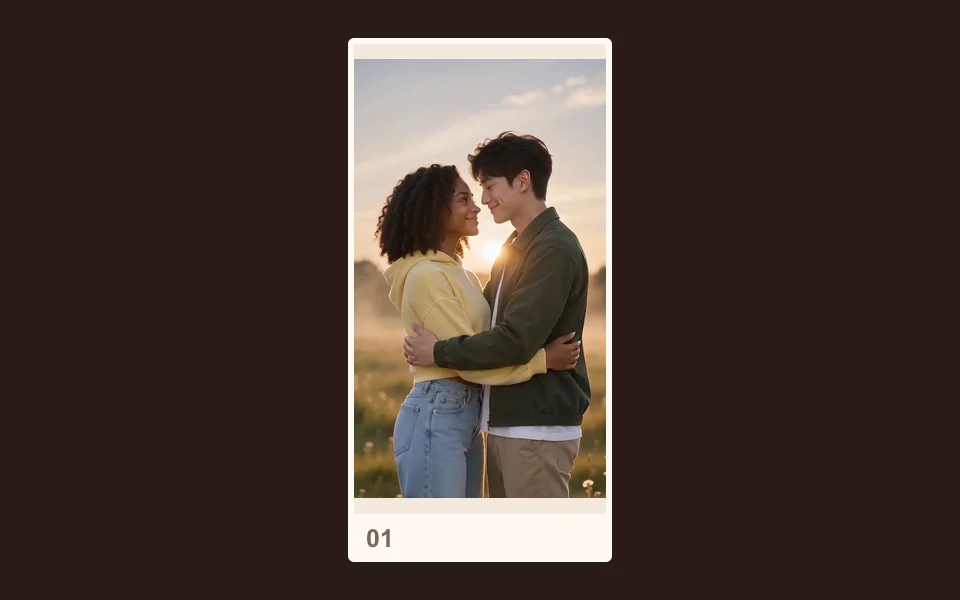
Gentle piano with each clip and no speech, so it sits well under a slideshow.
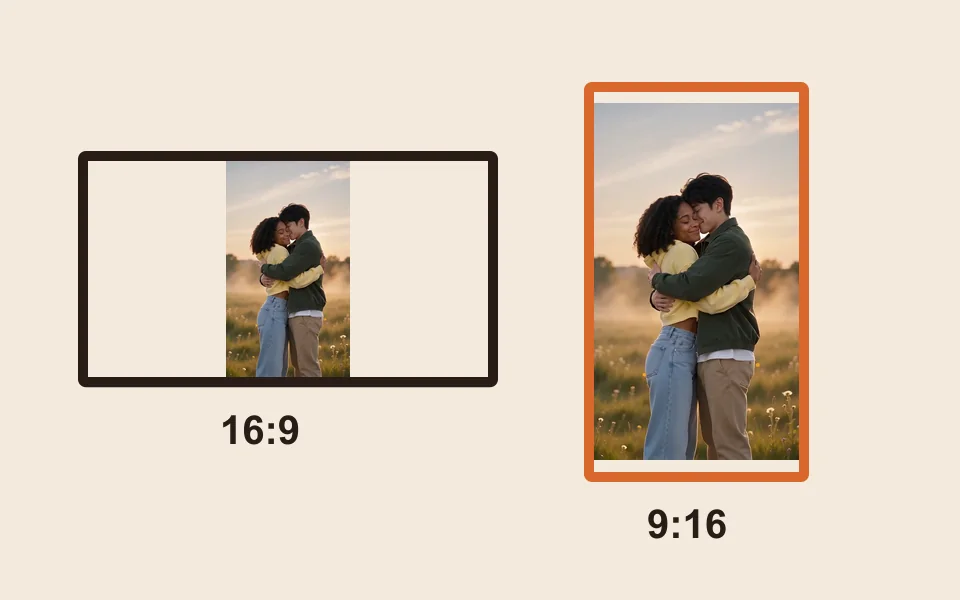
16:9, 9:16, 1:1, 4:3, 3:4 or 21:9, all at one price: wide for a TV, tall for phones.
Each render is one short clip, and a few clips between still photos often say more than one long one. Joining them is your own step, in any video editor on your phone or computer: this site makes the clips, not the slideshow.
Not tested by us: faded, scratched or black-and-white prints; our demos used clear, modern photos. There is no tool here to repair a photo first. A failed render is refunded, a finished one that does not feel right is not. Photos are deleted after 7 days; videos stay in My videos.
The faces follow your photos; the hug and the smile are made up. Many families find that comforting, and some relatives find it hard soon after a loss. Show it privately first, and ask before you post it or play it at a service. Use only family photos, or photos shared with the family’s blessing, never strangers or public figures.
More on the hug: AI hug with a deceased loved one. More on a single portrait: animate old photos.
Made here
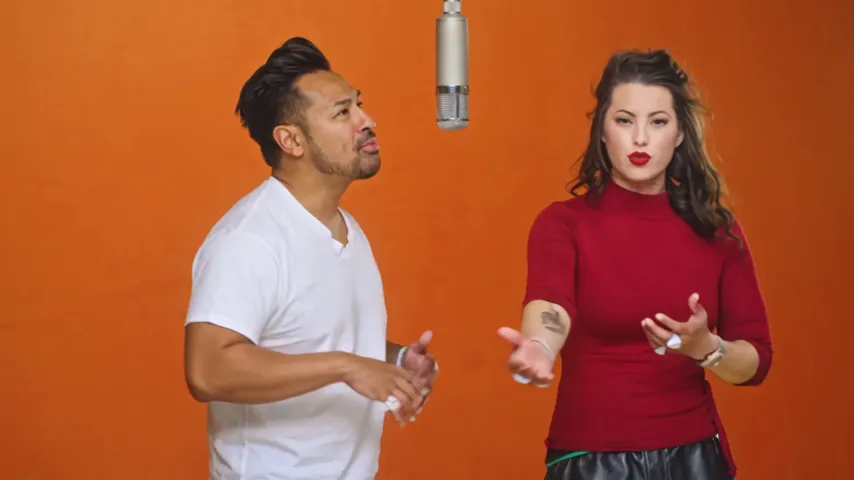
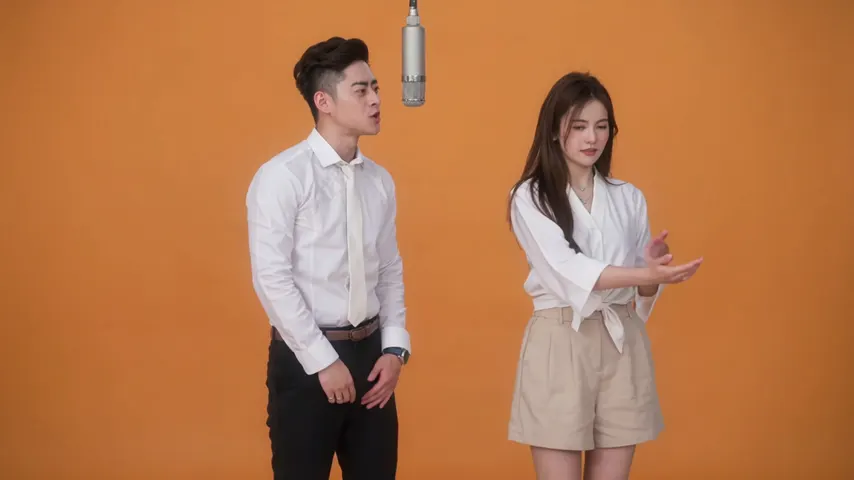
Two selected Wan 3.0 results from our generation workflow. Each rap duo video lists its settings and whether it was a product test or a website render. Play each clip with sound and review the whole performance; these examples do not establish a success rate.
Wan 3.0 · 480p · 10 s · 16:9
Wan 3.0 · 720p · 12 s · 16:9
From other creators
These clips illustrate the Hotel Lobby format and were made with other tools. They are references, not evidence of this generator’s output. Each links to its credited creator.
Add a clear photo of the person who passed and one of you, keep Memorial Hug selected and tap Make the effect. You get a short MP4 of the two of you sharing a gentle hug.
None. The meadow, the light, the hug and the piano are part of the effect. You only add the photos.
Yes. Choose Bring to Life and add only their photo. They blink, breathe and smile softly in the photo’s own setting.
No. There is no restoration tool here, and we have not tested damaged prints. Use the clearest copy you have.
No. Each render is one short clip. Join a few with photos and a song in any video editor.
Not inside the clip, which comes with its own piano. Add the song in your editor or the app you post to.
A 5 second clip at 720p costs 4 credits; longer or sharper clips cost more. Credits are paid when you create; the smallest pack is 10 credits for $9.99, and a failed render is refunded automatically.
No. It is an imagined scene made from your photos. It does not replace real recordings, and it is fine to decide it is not for you.
With care
Their photo, and yours if you like. It runs in your phone’s browser, no app, and the price is shown before you create.